
Using Nastaleeq Web Pro for WordPress – Shortcode Integration Guide
Introduction
WordPress powers over forty percent of all websites on the internet. It is the platform of choice for millions of bloggers, publishers, businesses, and content creators around the world. For Urdu writers, WordPress offers incredible reach and flexibility. But there has always been one persistent challenge: presenting beautiful, authentic Nastaleeq typography without constant technical headaches.
As we detailed in our post about why professional Urdu writers love this tool, Nastaleeq Web Pro solves this challenge elegantly. In this sixteenth post of our launch series, I will focus specifically on using Nastaleeq Web Pro with WordPress through our powerful shortcode integration.
By the end of this guide, you will know exactly how to embed the full Nastaleeq Web Pro tool directly into any WordPress post, page, or widget using nothing more than a simple shortcode. No coding. No complex setup. Just beautiful Urdu typography in minutes.
Why WordPress Users Need Nastaleeq Web Pro
Before diving into the technical steps, let me explain why Nastaleeq Web Pro is such a valuable addition to any WordPress workflow.
As we explored in our comparison with other tools, most WordPress Urdu plugins are unreliable. They break with theme updates. They conflict with other plugins. They offer only one or two generic fonts. And they often require uploading your text to external servers.
Nastaleeq Web Pro takes a different approach. Our shortcode integration gives you the full power of our Urdu typography tool directly inside your WordPress editor. You get:
-
Twenty authentic fonts (not just generic options)
-
Real-time live preview (see your text before publishing)
-
Complete customization controls (size and weight)
-
One-click web-ready code generation
-
100% client-side privacy (your text never leaves your browser)
As we highlighted in our post for bloggers and publishers, this combination of features is simply not available from any other WordPress solution.
What Is the Nastaleeq Web Pro Shortcode?
A shortcode is a simple WordPress feature that allows you to embed complex functionality with a simple text tag. Instead of pasting lengthy HTML code or installing complicated plugins, you just type something like nastaleeq_web_pro and WordPress automatically renders the full tool.
The Nastaleeq Web Pro shortcode embeds the complete interactive tool directly into your content. Your visitors can then:
-
Type or paste Urdu text directly on your page
-
Select from twenty authentic fonts
-
Adjust font size and weight
-
See live preview updates in real time
-
Copy web-ready code for their own use
This is perfect for educational websites, Urdu learning platforms, literary magazines, and any site where visitors need to create or format Urdu content.
How to Install the Nastaleeq Web Pro Shortcode
The shortcode is available through our dedicated WordPress Urdu plugin. Here is how to install and activate it.
Step 1: Download the Plugin
Visit the Nastaleeq Web Pro website and navigate to the WordPress plugin section. Download the plugin file (a single .php file).
Step 2: Upload to Your WordPress Site
There are two methods to upload the plugin:
Method 1 (via WordPress Admin):
-
Go to Plugins → Add New → Upload Plugin
-
Choose the downloaded file and click Install Now
-
Click Activate Plugin
Method 2 (via FTP):
-
Connect to your server using an FTP client
-
Navigate to
/wp-content/plugins/ -
Create a folder named
nastaleeq-web-pro -
Upload the
.phpfile into this folder -
Go to WordPress Admin → Plugins and activate it
Step 3: Verify Activation
After activation, you will see Nastaleeq Web Pro listed in your installed plugins. The shortcode is now ready to use anywhere on your site.
As noted in our free version guide, the plugin works with both the free and Pro versions of Nastaleeq Web Pro. Your subscription status is automatically detected.
How to Use the Shortcode
Once the plugin is activated, using the shortcode is straightforward.
Basic Usage
Simply type or paste the following shortcode into any WordPress post, page, or widget:
nastaleeq_web_pro
That is it. The full Nastaleeq Web Pro tool will render exactly where you placed the shortcode.
Where You Can Use the Shortcode
The shortcode works in:
-
WordPress Posts (Classic Editor and Block Editor)
-
WordPress Pages
-
Text Widgets (in Appearance → Widgets)
-
Sidebars and Footers
-
Custom Post Types
-
Page Builder modules (in HTML or Shortcode elements)
Advanced Shortcode Parameters
For users who want more control, the shortcode accepts several optional parameters:
| Parameter | Description | Example |
|---|---|---|
default_text |
Pre-fill the textarea with sample text | default_text="اپنا متن یہاں لکھیں" |
default_font |
Set a default font family | default_font="Jameel Noori Nastaleeq" |
default_size |
Set a default font size (16-72) | default_size="32" |
show_footer |
Show or hide the informational footer | show_footer="true" |
Example with multiple parameters:
By using this code in square brackets …
nastaleeq_web_pro default_font="Alvi Nastaleeq" default_size="36" show_footer="false"
This would load the tool with Alvi Nastaleeq preselected, font size set to 36 pixels, and the footer hidden.
Step-by-Step: Adding the Shortcode in Different WordPress Editors
Let me walk you through the exact steps for each WordPress editing environment.
In the Classic Editor
-
Open or create a new post or page
-
Switch from “Visual” to “Text” tab
-
Type or paste
nastaleeq_web_prowhere you want the tool to appear -
Switch back to “Visual” tab to see a placeholder
-
Publish or preview your post
In the Gutenberg Block Editor
-
Open or create a new post or page
-
Click the “+” button to add a new block
-
Search for “Shortcode” and select the Shortcode block
-
Type
nastaleeq_web_prointo the block -
Publish or preview your post
In a Widget Area
-
Go to Appearance → Widgets
-
Click the “+” button to add a new widget
-
Search for “Shortcode” and select the Shortcode widget
-
Type
nastaleeq_web_prointo the widget -
Save the widget
In Elementor or Other Page Builders
-
Open your page in Elementor
-
Search for the “Shortcode” element
-
Drag it onto your page
-
Type
nastaleeq_web_prointo the shortcode field -
Update the page
As we explained in our post for bloggers and publishers, Nastaleeq Web Pro works flawlessly with all major page builders.
Customizing the Shortcode Experience
The shortcode gives you flexibility to tailor the tool to your specific needs.
Pre-filling Text for Tutorials
If you are creating a tutorial or demonstration, use the default_text parameter to pre-fill the text area with example Urdu text:
Note : Use this code in square brackets to take effect
nastaleeq_web_pro default_text="یہ ایک مثال ہے۔ آپ اپنا متن یہاں لکھ سکتے ہیں۔"
Setting a Brand Font
If your publication has a brand font, use default_font to preselect it:
Note : Use this code below within square brackets to take effect
nastaleeq_web_pro default_font="Jameel Noori Nastaleeq Kasheeda
Hiding the Footer for a Cleaner Look
For minimalist designs or embedded applications, hide the informational footer:
Note : Use this code below within square brackets to take effect
nastaleeq_web_pro show_footer="false"
Combining Multiple Parameters
You can combine any number of parameters:
Note : Use this code below within square brackets to take effect
nastaleeq_web_pro default_font="Noto Nastaliq Urdu" default_size="30" default_text="نستعلیق ویب پرو میں خوش آمدید" show_footer="false
Troubleshooting Common Shortcode Issues
Even with a simple shortcode, questions can arise. Here are solutions to the most common issues.
Issue 1: The shortcode displays as plain text, not the tool
Solution: Make sure you are typing the shortcode correctly: nastaleeq_web_pro. Check for missing brackets, typos, or extra spaces. Also ensure the plugin is activated.
Issue 2: The tool appears but fonts look different
Solution: Some WordPress themes aggressively override font styles. The inline CSS in Nastaleeq Web Pro is designed to take precedence, but very aggressive themes may still interfere. Contact our support team for theme-specific guidance.
Issue 3: The shortcode does nothing
Solution: There may be a conflict with another plugin. Temporarily deactivate other plugins to identify the conflict. Also check that your WordPress version is up to date.
Issue 4: The tool is cut off or not fully visible
Solution: The tool requires adequate space. Ensure your theme provides enough width. If the tool is in a narrow sidebar, consider placing it in a wider area or using a different widget position.
Issue 5: The word limit warning appears unexpectedly
Solution: The free version has a 1000-word limit per session. If you need unlimited words, upgrade to Pro. The limit is clearly displayed in the word counter.
Best Practices for WordPress Integration
Here are some professional tips to get the most out of Nastaleeq Web Pro on your WordPress site.
Create a Dedicated Urdu Content Hub
Consider creating a dedicated page or section on your site where visitors can use Nastaleeq Web Pro. This could be an “Urdu Typography Tool” page linked from your main menu.
Use the Tool for User-Generated Content
If your site accepts user submissions (comments, guest posts, forum messages), encourage users to format their Urdu text using Nastaleeq Web Pro before submitting.
Embed in Educational Resources
For Urdu language learning sites, embed Nastaleeq Web Pro directly into lesson pages. Students can practice writing and see their text formatted beautifully in real time.
Combine with Other WordPress Features
Use the shortcode in conjunction with other WordPress features like membership restrictions, page builders, or custom post types to create unique experiences for your audience.
Performance and Privacy
As we emphasized throughout our documentation, Nastaleeq Web Pro processes everything client-side. The shortcode integration does not change this. When you embed the tool via shortcode:
-
Your visitors’ text never leaves their browsers
-
No data is sent to our servers
-
No cookies are required
-
Page load speed is not impacted by server processing
The shortcode simply loads the Nastaleeq Web Pro interface into your page. All processing happens locally on your visitor’s device.
Call to Action
You now have everything you need to integrate Nastaleeq Web Pro into your WordPress site. The shortcode makes it effortless. The tool makes it powerful.
Install the Nastaleeq Web Pro WordPress plugin today. Add nastaleeq_web_pro to any post, page, or widget. Give your visitors the gift of beautiful Urdu typography.
Your WordPress site deserves authentic Nastaleeq. Nastaleeq Web Pro delivers – one shortcode at a time.
Frequently Asked Questions
Do I need to be a developer to use the shortcode?
Not at all. The shortcode is designed for non-technical users. Just type nastaleeq_web_pro and publish.
Does the shortcode work with all WordPress themes?
Yes. Nastaleeq Web Pro works with virtually all modern WordPress themes. The generated code includes inline styles that override theme defaults.
Will the shortcode slow down my site?
No. The tool loads only when a visitor views a page containing the shortcode. All processing happens client-side, so server load is minimal.
Can I use multiple instances of the shortcode on the same page?
Yes. You can place the shortcode multiple times on the same page. Each instance operates independently.
What if I need help with the shortcode?
Pro subscribers receive priority support. Our team is always happy to help with integration questions.
One-Line Urdu Hook Text for Feature Image
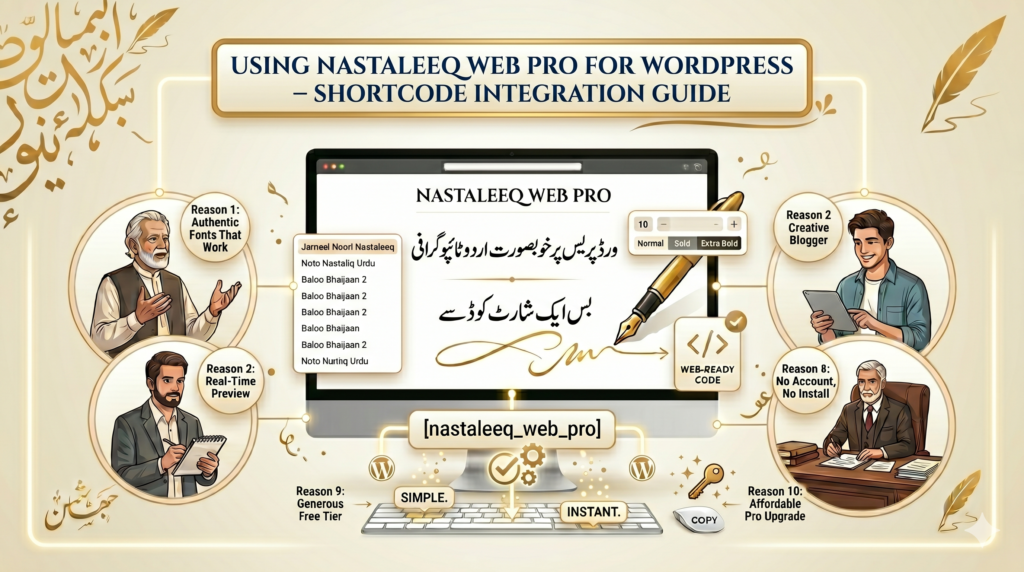
“ورڈپریس پر خوبصورت اردو ٹائپوگرافی — بس ایک شارٹ کوڈ دور”
(Translation: “Beautiful Urdu typography on WordPress — just one shortcode away.”)
Note : Wherever you want to use this code “nastaleeq_web_pro"
to call the Tool or Embed it , use this Code Within Square Brackets as
[Place Code here ].. Thanks